01. Overview
GCMS (Galileo Constellation Management System) is a real-time operations centre for monitoring and commanding satellite constellations. It provides a unified view of all satellites in orbit, their subsystem health, ground station contacts, and a command interface for satellite operations.
This interface displays live telemetry refreshed at 1 Hz. Orbital positions are computed with a full force model (J2–J6 zonal gravity, F10.7-scaled atmospheric drag, solar radiation pressure with penumbra, and Sun/Moon third-body perturbations). Subsystems model degradation over time: solar panel aging, battery self-discharge, emissivity loss, and reaction wheel saturation effects. Ground station contacts use Friis-equation link budgets, and the radiation/space weather environment is continuously tracked.
What You See
- Constellation view — fleet table, 3D globe, Mercator ground track, and health summary
- Satellite telemetry — drill down into any satellite for subsystem-level detail
- Ground station dashboard — station status, active contacts, and satellite command terminal
Status Indicator
The LIVE badge in the header pulses when telemetry is being received. If it turns red, the connection to the operations server has been lost. The timestamp next to the badge shows the age of the most recent update.
back to top02. Constellation Monitoring
Fleet Table
The fleet table lists every active satellite. Click any row to open its telemetry dashboard. Columns:
| Column | Description |
|---|---|
| Satellite | Name and designation (e.g., GSAT0218 / E31) |
| SVN | Space Vehicle Number — unique identifier for the spacecraft |
| Status | RUN = nominal operations |
| T+ | Mission elapsed time |
| SOC | Battery state of charge with trend sparkline |
| ADCS | Attitude mode: SUN, EARTH, TARGET, or SAFE |
| Eclipse | ECLIPSE when in Earth's shadow, sunlit otherwise |
| Safe | SAFE if satellite has entered safe mode |
| GND | Ground contact indicator — shows best elevation angle when in contact |
| ISL | Number of active inter-satellite links |
| Fuel | Remaining propellant. B = burn active, ! = thruster fault |
Ground Segment
Below the satellite table, a divider row separates the ground segment. Each ground station row shows its name, type, geographic position, and the number of satellites currently in contact. Click a ground station to open its dashboard.
Fleet Filtering
The filter bar above the fleet table lets you filter satellites by orbital plane (ALL / PLANE A / PLANE B / PLANE C). Filtering applies to the table, health stats, and availability calculations. Use this to focus on a specific plane during maintenance or anomaly resolution.
Alarm Summary
The alarm badge next to the LIVE indicator shows the count of active fleet anomalies. Anomalies are categorised as:
- SAFE — satellites in safe mode
- BATT — satellites with battery SOC below 30%
- THR — satellites with thruster faults
- FUEL — satellites with fuel below 10%
Click the alarm badge to highlight the corresponding rows in the fleet table.
Constellation Health
The health score (0–100) in the statistics bar summarises overall constellation fitness:
- −25 per satellite in safe mode
- −15 per satellite with SOC below 30%
- −5 per satellite with SOC below 50%
- −10 if the fleet average SOC drops below 60%
A healthy constellation maintains a score above 90. Scores below 70 warrant immediate operator attention. Per-plane health scores and constellation availability percentage are shown in the statistics strip.
ISL Topology Graph
The ISL button in the statistics strip toggles the inter-satellite link topology view, replacing the Mercator map. Satellites are arranged in three columns by orbital plane (A, B, C) with coloured links showing active ISL connections — green for line-of-sight, grey for no LOS. Hover over a node to highlight its connections, or over a link to see the range in kilometres. This view helps operators identify connectivity gaps or isolated spacecraft.
Telemetry Charts
Click any sparkline in the fleet table to open a 10-minute telemetry trend chart for that parameter. The chart shows the full history buffer with auto-scaled axes, time labels, and a crosshair on hover. Click the overlay background to close it.
3D Globe
The interactive globe uses NASA Blue Marble textures with a day/night shader that follows the Sun’s position in real time. Satellites are colour-coded: blue when sunlit, orange when in eclipse. Ground stations appear as green diamonds with labels. Faint lines between satellites indicate active inter-satellite links.
Click a satellite on the globe to open its telemetry dashboard. Click a ground station to open its dashboard. Hover over either to see a tooltip with key status information. Drag to rotate, scroll to zoom.
Mercator Map
The flat Mercator projection below the globe shows satellite ground tracks as dots and ground stations as green diamonds. Active inter-satellite links appear as green lines connecting satellites. If GPS position is available, your receiver location appears as a labelled marker. A radar sweep animation scans across the map.
GPS Receiver
The GPS panel uses your browser’s geolocation as a ground truth position, then runs a full least-squares pseudorange solver against the simulated constellation to produce a navigation fix — the same algorithm a real receiver uses. Your position is marked on both the globe and the Mercator map, with signal beams drawn to each visible satellite.
The panel displays the following fields when a fix is obtained:
| Field | Description |
|---|---|
| Position | Solved latitude and longitude in degrees, computed by the iterative Gauss-Newton solver from pseudorange measurements. |
| Altitude | Solved altitude in metres above the reference sphere. |
| Satellites | Number of constellation satellites above the 5° elevation mask that contribute to the fix. At least 4 are required for a 3D solution. |
| Horiz Err | Horizontal position error in metres — the great-circle distance between the solved position and the true (browser) position. Green ≤ 30 m, yellow ≤ 100 m, red > 100 m. |
| Vert Err | Vertical position error in metres — absolute difference between solved and true altitude. Same colour thresholds as Horiz Err. |
| HDOP | Horizontal Dilution of Precision. Measures how satellite geometry affects horizontal accuracy. Lower is better; values below 2 are excellent. Derived from the solver’s covariance matrix (see Technology: GPS). |
| VDOP | Vertical Dilution of Precision. Usually worse than HDOP because all satellites are above the receiver, providing poor vertical geometry. |
| PDOP | Position (3D) Dilution of Precision. Combines horizontal and vertical components: PDOP = √(HDOP² + VDOP²). |
| UERE | User Equivalent Range Error — the total single-satellite pseudorange error budget. The simulator models ~10 m from ionospheric delay, tropospheric delay, multipath, satellite clock drift, and receiver noise. Position error ≈ UERE × DOP. |
| NAV DATA | Shows BROADCAST EPH when the solver uses broadcast ephemeris from the satellites (realistic mode), or DIRECT TELEM if ephemeris data is not yet available and the solver falls back to direct telemetry positions. |
Broadcast Ephemeris
Each satellite generates a broadcast navigation message containing its orbital elements and clock corrections — just like real Galileo I/NAV. The GPS solver uses these ephemeris parameters to compute satellite positions, rather than reading their true positions directly. This introduces realistic ephemeris error (1–5 m) as the broadcast Keplerian prediction diverges from the actual perturbed orbit over time. Navigation messages are refreshed every 30 seconds of simulation time.
Deep dive: what the nav message contains
The broadcast ephemeris includes:
- Keplerian elements — √a, eccentricity, inclination, RAAN, argument of perigee, mean anomaly at reference epoch
- Rate corrections — RAAN rate, inclination rate, mean motion correction (Δn)
- Clock polynomial — af0 (bias), af1 (drift), af2 (drift rate) at a clock reference epoch
- IODE — Issue of Data (Ephemeris), an incrementing counter that changes on each update
The receiver solves Kepler’s equation to reconstruct the satellite position at measurement time, then applies the clock polynomial to correct the pseudorange. Any residual error not captured by the polynomial shows up as positioning error.
Below the GPS fix, a pass predictions table shows the next upcoming satellite passes over your position (see Pass Predictions). Click a satellite name to open its telemetry dashboard.
back to top03. Satellite Telemetry
Click a satellite in the fleet table or on the globe to open its telemetry dashboard. The dashboard shows subsystem panels arranged in a grid. Use the breadcrumb navigation at the top to return to the constellation view.
Orbit
Altitude, orbital period, inclination, RAAN (right ascension of ascending node), sub-satellite point (latitude/longitude), eclipse status, and sun beta angle. The RAAN drifts over time due to J2 perturbation from Earth's oblateness.
The orbit panel also shows satellite metadata from the fleet configuration:
orbital slot (e.g. B05), clock type (PHM or
RAFS), manufacturer, launch date with age in years, launch
vehicle, and launch site. Non-nominal operational status (auxiliary, not in service)
is highlighted when applicable.
Power (EPS)
Battery state of charge, solar array power generation, bus voltage, and load
consumption. Solar panels degrade ~0.5%/year; battery self-discharge increases
with temperature. During eclipse, the satellite runs on battery power; in
sunlight, solar arrays charge the battery and power the bus.
load_shed indicates non-essential loads have been disconnected
to conserve power.
Thermal
Temperature readings (in Kelvin) for each thermal node: OBC, battery, payload, solar panel, and structure. Heaters maintain temperatures within safe bounds. If any node exceeds 340 K, FDIR triggers automatic load shedding.
ADCS (Attitude Determination & Control)
Attitude modes and their operational use:
| Mode | Description |
|---|---|
SUN_TRACK | Default. Solar arrays track the sun for maximum power generation. |
EARTH_POINT | Nadir pointing. Enables communication antennas and observation payloads. |
TARGET_TRACK | Points at specific ground coordinates for a set duration. |
SAFE | Minimum-power safe orientation. Set automatically by FDIR during anomalies. |
Reaction wheels store angular momentum on three axes (normalised 0.0–1.0). When any wheel approaches saturation (above 0.95), FDIR commands automatic desaturation using magnetorquers.
Communications
Maximum and effective downlink rate, ground contact status, best elevation angle, contact station type, queued downlink files, and total data downloaded.
Storage
Onboard mass storage capacity and current usage. Files are created by onboard software and queued for downlink during ground passes. The satellite uses a dual-slot (A/B) partitioning scheme for safe software updates.
Propulsion
Fuel mass remaining, delta-V budget, active burn status, and individual thruster health. Supports prograde, retrograde, and radial burns. Each of four thrusters can independently fail (stuck open or stuck closed).
Inter-Satellite Links (ISL)
Number of active ISL peers, link details, and connectivity status. Inter-satellite links require line-of-sight between spacecraft, computed from orbital geometry. Data rate scales with range (1/d²) and is affected by attitude: safe mode disables ISL (can't maintain beam lock), and target-track reduces throughput by ~30%. ISL enables cross-link communication between satellites in different orbital planes.
Processes
A table of all running onboard software processes showing PID, name, privilege role, state, CPU usage, and memory consumption. Click a service name to view its source code.
Event Log
Chronological log of satellite events: mode changes, FDIR actions, ground contacts (AOS/LOS), burns, faults, and software lifecycle events. Events are severity-coded: INFO, WARN, ERROR.
back to top04. Ground Segment

Station Types
Ground stations serve different roles in constellation operations. The station type determines its function in the ground segment:
| Type | Full Name | Role |
|---|---|---|
GCC |
Galileo Control Centre | Primary mission control facility. Manages constellation operations, orbit determination, navigation message generation, and platform monitoring. GCCs have full commanding authority over the constellation. |
TTC |
TT&C Station | Telemetry, Tracking & Command station. Receives satellite telemetry downlink, performs ranging measurements for orbit determination, and sends platform commands to satellites during contact passes. |
ULS |
Uplink Station | Transmits navigation messages and mission data to satellites. Handles telecommand uplink for configuration changes and onboard software updates. |
GMS |
Galileo Monitor Station | Passive monitoring facility. Receives and measures navigation signals for signal integrity verification and independent orbit determination. Does not command satellites. |
Station Capabilities
The dashboard panels available depend on the station type. Not all stations can command satellites — monitor stations are passive by design:
| Capability | GCC | TT&C | ULS | GMS |
|---|---|---|---|---|
| Station info | ✓ | ✓ | ✓ | ✓ |
| Active contacts | ✓ | ✓ | ✓ | ✓ |
| Elevation plot | ✓ | ✓ | ✓ | ✓ |
| Satellite terminal | ✓ | — | ✓ | — |
| Onboard log viewer | ✓ | ✓ | — | — |
Ground Station Dashboard
Click a ground station in the fleet list or on the globe to open its dashboard. The panels shown depend on the station type (see table above). All stations show:
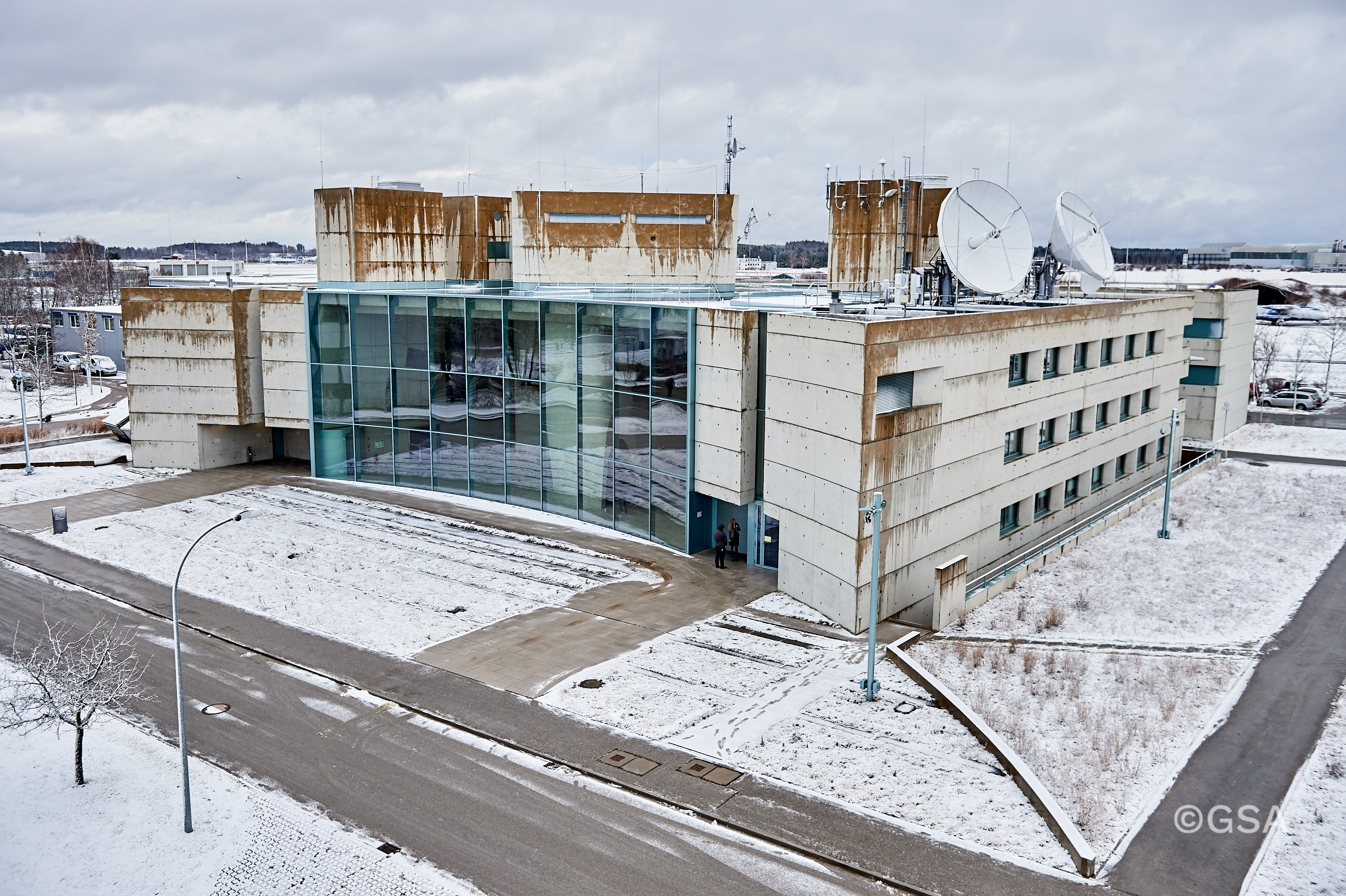
- Station Info — name, type and description, geographic coordinates (linked to OpenStreetMap), country, and minimum elevation mask. An ESA photo shows the station type.
- Active Contacts — table of satellites currently in view, with name, SVN, elevation angle, contact duration, and a polar elevation chart
Stations with command capability (GCC, ULS) additionally show:
- Terminal — command interface for sending commands to satellites in contact (see Commanding Satellites)
Stations with downlink capability (GCC, TT&C) also provide:
- Onboard Log Viewer — live tail of application logs from the selected satellite
GCC stations have full authority and additionally offer:
Contact Mechanics
A contact begins when a satellite rises above the station's minimum elevation mask (typically 5°). This is called AOS (Acquisition of Signal). The contact ends at LOS (Loss of Signal) when elevation drops below the mask.
For satellites at MEO altitude (~23,222 km), contact passes are long — typically several hours — and multiple satellites are often in view simultaneously. The elevation angle determines link quality: higher elevation means shorter signal path and better throughput.
Link Budget Model
The satellite's effective data rate is derived from a Friis-equation link budget at S-band (2.2 GHz). Throughput scales with the signal-to-noise ratio, which depends on the slant range to the best ground station and atmospheric attenuation:
- Below minimum elevation: No contact — downlink queue paused
- Slant range: Computed from satellite altitude and elevation angle. At zenith (90°), slant range equals the orbital altitude; at the horizon (5°), it can be 3–5× longer
- Free-space path loss: \(\text{FSPL} = 20\log_{10}(d) + 20\log_{10}(f) + 32.45\;\text{dB}\) where \(d\) is the slant range in km and \(f\) is the frequency in MHz
- Atmospheric attenuation: Increases at low elevation angles following an airmass model (\(\sim 1/\sin(\text{elev})\)), adding 0.5–10 dB of loss
- Rate scaling: The excess path loss relative to zenith determines the throughput fraction (5%–100% of maximum rate)
If multiple ground stations are in contact with the same satellite, the station with the highest elevation determines the effective rate.
back to top05. Commanding Satellites
Ground Station Terminal
Satellite commands are issued through the ground station terminal. Open a ground station dashboard (GCC or ULS) and use the terminal panel. The terminal includes a satellite selector dropdown that lists all satellites currently in contact with that station.
Select a target satellite from the dropdown, then type commands in the input field. Commands are routed to the selected satellite and the response is displayed in the terminal output area.
Ground Station Shell
Before selecting a satellite, the terminal operates in ground station mode. This gives you station-local commands for checking visibility, pinging satellites, and connecting to a remote satellite terminal.
| Command | Description |
|---|---|
status | Station info: name, type, location, contact count |
contacts | List satellites currently in contact (above elevation mask) |
tracked | List all tracked satellites with elevation and AOS/below status |
where <svn> | Show elevation, slant range, propagation delay, and sub-satellite point for a satellite |
ping <svn> [count] | Ping a satellite with propagation delay simulation (default: 4) |
trace <svn> | Trace the route to a satellite — direct if in contact, or via ISL relay |
uplink <name> | Establish S-band command uplink to a satellite (by name or SVN) |
exit | Close uplink and return to ground station shell |
trace command will attempt to route via a relay satellite that
is in contact and has an ISL link to the target.
Common Operator Workflows
Check satellite health:
status              # Overall status summary
events 10           # Recent system events
fuel                # Propulsion and fuel status
ps                  # Running onboard processes
Manage attitude:
set_mode earth_point                    # Switch to nadir pointing
request_pointing target 48.1 11.3 300   # Point at coordinates for 300s
set_mode sun_track                      # Return to sun tracking
desat                                   # Command wheel desaturation
Manage downlink:
queue_file obs_data 50          # Create a 50 MB observation file
queue_downlink obs_data         # Queue it for downlink to ground
Manage onboard software:
ps                              # List running processes
service list                    # List all services and their states
service restart ttc             # Restart the TTC service
logs 7                          # View output from process PID 7
Orbit maintenance:
fuel                                # Check fuel and delta-V budget
burn prograde 0.5 60                # Prograde burn: 0.5 N for 60 s
burn_abort                          # Abort burn if needed
Set runlevel:
runlevel                        # Show current runlevel
runlevel maintenance            # Enter maintenance mode
runlevel normal # Return to normal operations06. Terminal Command Reference
Complete reference for all commands available in the ground station terminal. Commands are sent to the currently selected satellite.
Information
| Command | Description |
|---|---|
help | List all available commands |
status | Satellite status summary (runlevel, sim time, safe mode, subsystems) |
ps | Process list with PID, name, role, state, CPU%, and memory |
events [n] | Last n system events (default: 20) |
fuel | Propulsion status: fuel mass, delta-V remaining, thruster health |
Filesystem
| Command | Description |
|---|---|
cd [path] | Change working directory |
pwd | Print working directory |
ls [path] | List directory contents |
cat <path> | Read file contents |
mkdir <path> | Create directory |
rm <path> | Remove file or directory |
write <path> <content> | Write content to file |
chown <root|user> <path> | Change file ownership |
Program Management
| Command | Description |
|---|---|
verify <name> | Verify program manifest and syntax |
compile <name> | Compile program from /programs/ |
load <id|name> | Load compiled program into the runtime |
exec <id|name> | Start program execution |
kill <pid> | Terminate a running process |
logs <pid> | View process output (last 20 lines) |
service list | List all services and their states |
service start <name> | Start a service |
service stop <name> | Stop a service |
service restart <name> | Restart a service |
Attitude & Propulsion
| Command | Description |
|---|---|
set_mode <mode> | Set attitude mode: sun_track, earth_point, target_track, safe |
request_pointing target <lat> <lon> <dur> | Point at ground coordinates for <dur> seconds |
desat | Command reaction wheel desaturation |
burn <axis> <thrust_n> <dur_s> | Command a propulsion burn |
burn_abort | Abort the current burn immediately |
Burn axes: prograde, retrograde, radial_in, radial_out
fuel before commanding burns. FDIR will automatically abort a burn
if a thruster fault is detected.
Networking
| Command | Description |
|---|---|
ping <svn> [count] | Ping a peer satellite via ISL (default: 4 probes, max 20). Shows round-trip time and range in km |
trace <svn> | Trace the ISL route to a satellite. Uses Dijkstra’s algorithm weighted by propagation delay to find the shortest path. Also available as traceroute |
Deep dive: ISL ping and traceroute
ping sends probes to a peer satellite over the ISL mesh
and measures the round-trip time. Each probe has a 2-second timeout.
The output includes range in kilometres and RTT in milliseconds, followed
by statistics (min/avg/max RTT, packet loss).
trace queries the Space process for the full ISL topology,
then runs Dijkstra’s algorithm with propagation delay as the edge weight
(range / speed of light). The result shows each hop with its SVN, range,
and cumulative one-way delay, plus a summary with total RTT and hop count.
/ $ ping 5
PING SVN 5 from SVN 1
reply from SVN 5: seq=1 range=450km time=3.2ms
reply from SVN 5: seq=2 range=450km time=3.1ms
--- 4 transmitted, 4 received, 0% loss
rtt min/avg/max = 3.0/3.2/3.4 ms

/ $ trace 5
traceroute to SVN 5 from SVN 1
 1  SVN 2    200 km  0.667 ms
 2  SVN 4    300 km  1.667 ms
 3  SVN 5    150 km  2.167 ms
total one-way: 2.167 ms  rtt: 4.334 ms  3 hops
Storage & Downlink
| Command | Description |
|---|---|
queue_file <name> <sizeMB> | Create a file in onboard storage |
queue_downlink <filename> | Queue file for downlink during next ground contact |
System
| Command | Description |
|---|---|
runlevel [level] | View or set runlevel: normal, safe, maintenance |
slot [a|b|sync] | View or set active software partition, or sync both |
pkg list | List installed packages |
pkg available | List packages available for install |
pkg install <name> | Install a package |
pkg remove <name> | Remove a package |
fault inject <type> | Inject a fault for testing (see Fault Management) |
seed <int> | Reset simulation RNG seed |
07. Onboard Software
Quadrate Runtime
Each satellite runs the Quadrate (QD) runtime — a native-code compiler and execution environment for onboard programs. Programs handle satellite operations from power management to telemetry broadcast.
Core Services
These services run automatically and manage satellite operations. They can be inspected, restarted, or stopped via the terminal:
| Service | Interval | Purpose |
|---|---|---|
fdir | 1 s | Fault detection, isolation, and recovery. Manages safe mode transitions, thermal limits, wheel desaturation, burn abort, and ground contact monitoring. |
epsd | 2 s | EPS daemon. Controls battery charging, load shedding decisions, and solar array tracking. |
thermald | 3 s | Thermal daemon. Manages heater activation based on temperature limits for each thermal node. |
adcsd | 3 s | ADCS daemon. Handles target tracking timer, desaturation completion, and wheel monitoring. |
scheduler | 2 s | Process scheduler. Enforces CPU and memory quotas, terminates processes that exceed limits. |
ttc | 5 s | TTC link management. Drains the downlink queue during ground contacts, logs AOS/LOS events. |
mcastd | 2 s | Multicast daemon. Broadcasts telemetry via UDP for ground station discovery and tracking. |
service restart <name>
to restart a misbehaving service. Stopping critical services like fdir
disables fault protection — only do this during planned maintenance windows.
Running Programs
Operators can compile and execute pre-installed programs on a satellite via the terminal. The filesystem is read-only — programs are managed by mission operations.
# Compile, load, and run a program
compile monitor
load monitor
exec monitor

# Verify it's running
ps
Tutorial: Hello World with a JavaScript Panel
This walkthrough creates a minimal Quadrate program that exposes a custom panel in the web UI using a JavaScript renderer. By the end you will have a running program with a live-updating panel on your satellite.
Step 1 — The QD Program
Create hello.qd with the following source. The manifest
directives at the top tell the runtime about the program and its UI:
//app=hello
//description=Hello World with a custom panel
//role=root
//tick=3000
//cpu=1
//mem=4
//panel=Hello World
//field=counter:float:Counter
//field=greeting:float:Greeting
//render_js=function render_qd_hello(el, data, telem) { el.innerHTML = '<div style="padding:8px"><h3 style="color:#0f0">hello from space!</h3><p>Tick count: ' + (data.counter || 0) + '</p><p>Battery: ' + _ph.bar(telem.batt_soc || 0, 1) + '</p></div>'; }

use xsat
use xsys

fn start( -- ) {
    "hello world started" xsat::log
}

fn tick( -- ) {
    "counter" xsys::get -> c
    c 1.0 + -> c
    "counter" c xsys::set
    "greeting" 1.0 xsys::set
    "hello from space!" xsat::log
}

fn stop( -- ) {
    "hello world stopped" xsat::log
}
What Each Directive Does
//app=hello | Sets the program name. Used as the filename and process identifier. |
//role=root | Grants root privilege so the program can write UserVars via xsys::set. |
//tick=3000 | Calls tick() every 3 seconds. |
//cpu=1, //mem=4 | Resource quotas — 1% CPU, 4 MB memory. |
//panel=Hello World | Creates a UI panel with this title in the satellite ground view. |
//field=counter:float:Counter | Declares a panel field. Format: key:type:label[:unit]. Types: float, bar, bool, string. The key must match a UserVar set by the program. |
//render_js=... | Inline JavaScript renderer. Overrides the default field layout with custom HTML. |
Step 2 — The Render Function
The //render_js= directive contains a JavaScript function that the
web UI calls on every telemetry refresh. The function signature is:
function render_qd_<appname>(el, data, telem)
//  el    - DOM element for your panel content
//  data  - object with your UserVars (from xsys::set)
//  telem - full satellite telemetry snapshot
The global _ph helper provides safe rendering utilities:
_ph.esc(str) | HTML-escape a string |
_ph.bar(value, max) | Colored progress bar HTML |
_ph.kv(label, value) | Key–value row |
_ph.sparkline(array) | Inline SVG sparkline |
render.js file in a .qpkg package instead
of the inline //render_js= directive. See
Section 11: Module Packages.
Step 3 — Run via Terminal
Connect to a satellite in the ground view, then compile and run:
# Compile and run
compile hello
load hello
exec hello

# Verify it's running
ps
Step 4 — See Your Panel
Once running, your Hello World panel appears in the satellite ground view alongside the built-in subsystem panels. Every 3 seconds the counter increments and the panel re-renders with your custom JavaScript.
Packaging as .qpkg
For a cleaner setup, move the render function to an external file and
package everything as a .qpkg:
// render.js
function render_qd_hello(el, data, telem) {
    var cnt = data.counter || 0;
    var soc = _ph.bar(telem.batt_soc || 0, 1);
    el.innerHTML =
        '<div style="padding:8px">' +
        '<h3 style="color:#0f0">hello from space!</h3>' +
        '<p>Tick count: ' + cnt + '</p>' +
        '<p>Battery: ' + soc + '</p>' +
        '</div>';
}
Remove the //render_js= line from hello.qd (the
external file takes priority), then create the archive:
tar czf hello.qpkg hello.qd render.jsPrivilege Levels
| Role | Access Level |
|---|---|
core | Full system access. Can modify satellite state, fire events, control burns, manage services. |
root | Elevated access. Used for pre-installed system services. |
user | Read-only telemetry access. Cannot modify satellite state directly. |
08. Fault Management
FDIR (Fault Detection, Isolation & Recovery)
The onboard FDIR service continuously monitors satellite health and takes autonomous action when anomalies are detected:
- Low battery (SOC < 20%) — enters safe mode: load shed, ADCS safe, user apps stopped
- Thermal overtemperature (> 340 K) — triggers load shedding to reduce heat generation
- Reaction wheel saturation (> 0.95) — commands automatic desaturation via magnetorquers
- Thruster fault during burn — aborts the active burn immediately
- No ground contact for > 1 hour — raises a warning event
FDIR events appear in the satellite event log. After safe mode entry, the satellite will recover automatically once conditions normalise (e.g., battery SOC rises above threshold as solar charging resumes).
Fault Injection
For training and testing FDIR response, faults can be injected via the terminal.
Use fault inject <type> from the ground station terminal:
| Fault | Effect | Expected FDIR Response |
|---|---|---|
power_drain |
Instantly drains 30 Wh from the battery | If SOC drops below 20%, satellite enters safe mode (load shed, ADCS safe, user apps stopped) |
wheel_spike |
Saturates all 3 reaction wheels to 0.92 momentum | FDIR triggers automatic desaturation when any wheel exceeds 0.95 |
temp_spike |
Increases OBC temperature by 40 K | FDIR triggers load shedding if any thermal node exceeds 340 K |
stuck_thruster |
Thruster 0 stuck open — uncontrolled fuel leak and delta-V | FDIR aborts any active burn when thruster fault is detected |
thruster_closed |
Thruster 1 stuck closed — reduced available thrust | Burns still possible with remaining thrusters at reduced efficiency |
Example: Power Anomaly Response
# Inject a power drain
fault inject power_drain

# Watch FDIR respond
events 5

# Monitor recovery as solar charging restores SOC
status09. Pass Predictions
How It Works
The pass predictor uses a simplified J2 orbital propagation model to forecast when each satellite will be visible from your location. It steps forward in 30-second increments over a 24-hour window, computing elevation angles at each step.
A pass begins when a satellite's elevation rises above 5° (AOS) and ends when it drops below 5° (LOS). The moment of peak elevation is recorded as TCA (Time of Closest Approach).
Prediction Table
The pass predictions table appears in the GPS panel and shows the next 10 upcoming passes, sorted by AOS time:
| Column | Description |
|---|---|
| Satellite | Name of the spacecraft (clickable — opens satellite telemetry) |
| AOS | Acquisition of Signal — when the satellite rises above 5° elevation |
| TCA | Time of Closest Approach — moment of maximum elevation |
| LOS | Loss of Signal — when elevation drops below 5° |
| Max El | Peak elevation angle during the pass. Green above 45°, yellow above 20° |
| Dur | Total pass duration (LOS − AOS) |
J2 Propagation Model
The predictor accounts for the Earth's oblateness (J2 perturbation), which causes RAAN precession and argument of perigee drift. This gives more accurate predictions than a simple Keplerian model, especially over a 24-hour window. Orbital elements are fetched from each satellite's live telemetry.
back to top10. Fleet Operations
Multi-Select
In the constellation view, use vim-style keyboard navigation
(j/k to move, g/G for
top/bottom, Enter to open a satellite). Press Space
to toggle multi-selection on the highlighted row. Selected satellites are
highlighted in the fleet table.
Operations Toolbar
When one or more satellites are selected, the operations toolbar appears below the fleet table showing the selection count and three dispatch buttons:
- SHELL CMD — prompts for a command and dispatches it to all selected satellites in parallel
- SAFE MODE — sends
safe-mode enableto all selected satellites (with confirmation) - DESAT — sends
adcs desatto all selected satellites
Press CLEAR to deselect all satellites and hide the toolbar.
Command Queue & Macros
The macro toolbar appears below the terminal input. It lets you batch commands and save reusable sequences.
- QUEUE — toggles queue mode. When active, pressing Enter adds the command to the queue instead of executing it immediately. Queued commands appear as a numbered list above the input.
- RUN QUEUE (N) — executes all N queued commands sequentially with a short delay between each
- SAVE MACRO — prompts for a name and saves the current queue as a reusable macro
- LOAD MACRO — dropdown to select a saved macro, which loads its commands into the queue
Macros are stored in your browser’s local storage and persist across sessions. Use the dropdown to manage saved macros.
Deep dive: macro workflows
A typical use case is saving a health check sequence that you run on every pass:
# Toggle QUEUE mode on, then type each command:
status
events 5
fuel
ps

# Click SAVE MACRO, name it "health_check"
# Next time: LOAD MACRO → health_check → RUN QUEUE
Macros can be exported and imported as JSON for sharing between operators. The queue runs commands with a 100 ms delay between each, which is enough for the satellite to process each command before the next arrives.
11. Module Packages
Overview
The .qpkg package format bundles a Quadrate program with its dependencies and optional UI components into a single archive. This allows operators and third-party developers to distribute self-contained modules that include source code, library files, and custom panel renderers.
Package Structure
A .qpkg file is a gzip-compressed tar archive containing:
| Path | Required | Purpose |
|---|---|---|
*.qd (root) | Yes | Main program source. Exactly one .qd file must exist at the archive root. Must contain the //app= directive. |
render.js | No | Custom JavaScript panel renderer. Loaded by the web UI when the module declares a //panel= directive. |
lib/*.qd | No | Library files. Stored on the satellite at /programs/lib/<app>/ for use by the main program. |
Additional files (README, assets, etc.) are ignored by the parser but preserved for forward compatibility.
Manifest Directives
The main .qd file must contain standard manifest directives as
comments. These define the module's identity, resource requirements, and
optional UI panel:
//app=battery_guard
//cpu=5
//mem=16
//tick=2000
//perms=telemetry.read
//description=Monitors battery health and triggers load shedding
//panel=Battery Guard
//field=soc:bar:SOC:%
//field=voltage:float:Voltage:V
//render_js=inline JS here (or use external render.js)

fn start() { }
fn stop() { }
fn tick( -- ) { }| Directive | Purpose |
|---|---|
//app= | Module name (required). Used as filename and identifier. |
//cpu= | CPU quota (percentage). Default: 0 (no limit). |
//mem= | Memory quota (MB). Default: 0 (no limit). |
//tick= | Tick interval in milliseconds. Default: 5000. |
//perms= | Comma-separated permissions (e.g. telemetry.read). |
//role= | Privilege level: core, root, or omit for user. |
//description= | Human-readable description shown in capabilities. |
//panel= | Panel title. Enables a custom telemetry panel in the web UI. |
//field= | Panel field in key:type:label:unit format. Types: float, bar, bool, string. |
//render_js= | Inline JS renderer. Ignored if an external render.js file is included in the package. |
Creating a Package
Use standard tar and gzip tools to create a .qpkg archive:
# From your module directory:
tar czf battery_guard.qpkg main.qd render.js lib/
The archive must have the main .qd file at the root level (not
inside a subdirectory). Library files go under lib/.
Size Limits
| Limit | Value |
|---|---|
| Total package (uncompressed) | 1 MB |
| Single file | 256 kB |
| Maximum files | 32 |
Listing Modules
# List installed modules:
curl http://127.0.0.1:<port>/api/v1/modules
On-Satellite File Layout
After installation, files are stored in the satellite filesystem:
| Source | Destination |
|---|---|
main.qd | /programs/<app>.qd |
render.js | /programs/render/<app>.js |
lib/helpers.qd | /programs/lib/<app>/helpers.qd |
API Reference
| Method | Endpoint | Description |
|---|---|---|
GET | /api/v1/modules | List all installed modules with their state, panel info, and file counts. |